1.1 Login to the Platform
Objective
Learn how to log in to the All-in-One Platform and access the system console.
Applicable Roles
All roles (System Administrator, Tenant Administrator, End User)
Prerequisites
The platform access URL has been obtained from operations staff.
A valid account and initial password have been obtained.
Where Do Accounts Come From
| Role | Account Creator | Initial Password Acquisition |
|---|---|---|
| System Administrator | Operations staff initialize via backend | Operations staff notify via secure channels (email / enterprise internal communication tools) |
| Tenant Administrator | System Administrator creates within the platform (see Section 4.1) | Generated upon creation, copied and notified by System Administrator |
| End User | Tenant Administrator creates within the platform (see Section 5.1) | Generated upon creation, copied and notified by Tenant Administrator |
Tip
It is recommended to change the password immediately after the first login (see Section 12.3 for instructions). If you forget your password, contact your upper-level administrator to reset it (System Administrators contact operations, Tenant Administrators contact System Administrators, End Users contact Tenant Administrators).
Steps
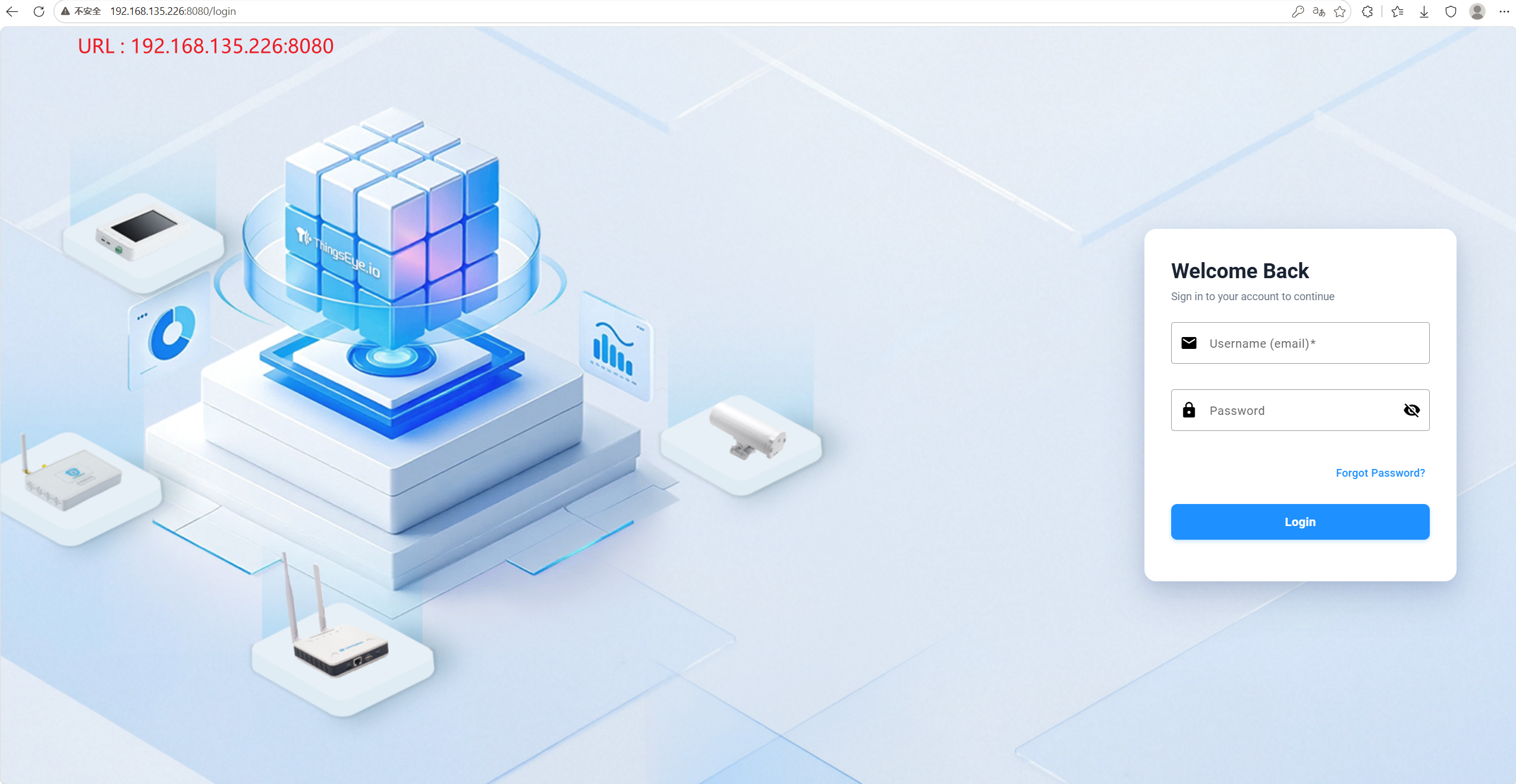
Step 1: Access the Login Page
Enter the platform access URL in the browser address bar to reach the login page.
Step 2: Enter the Console
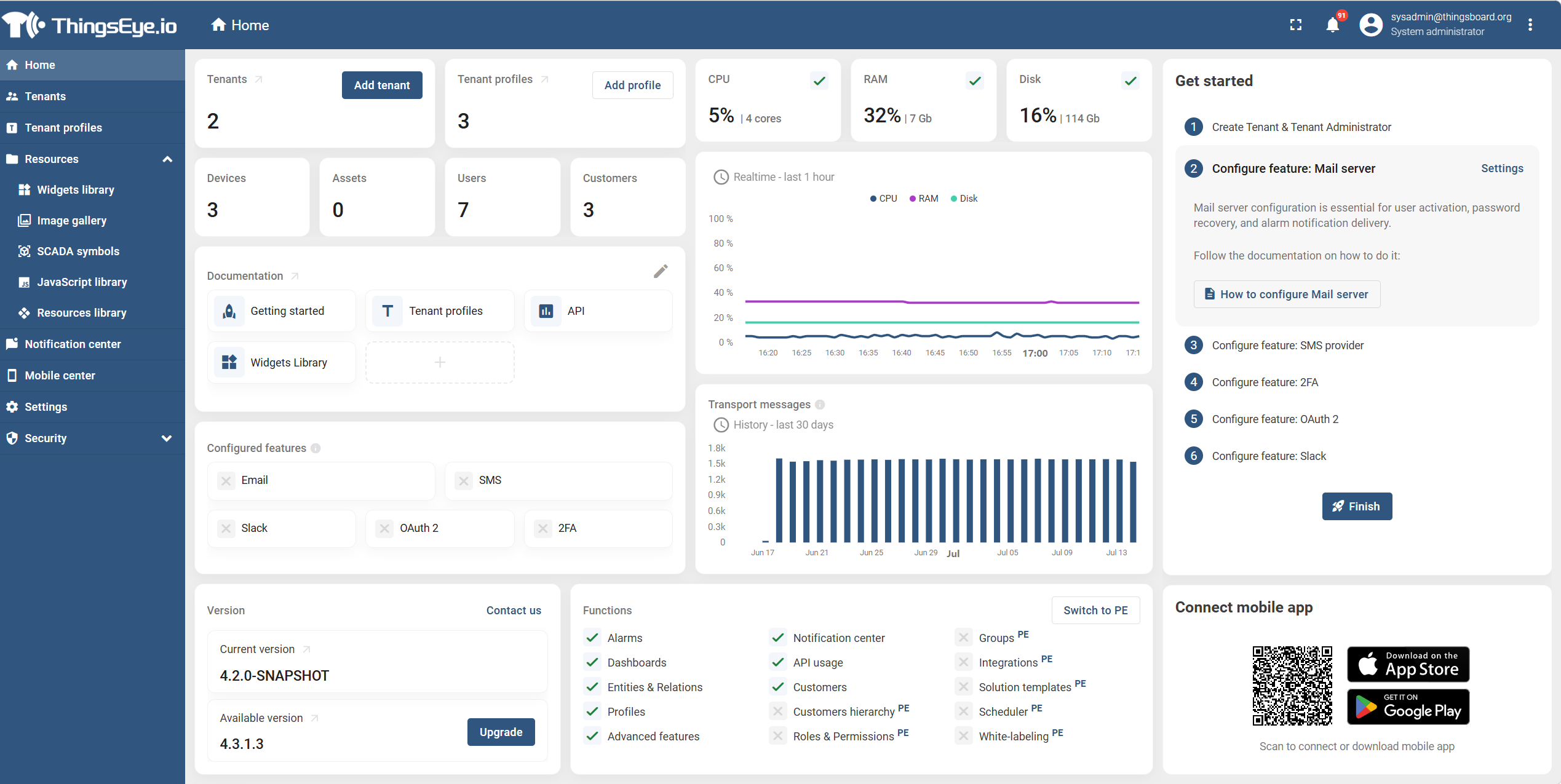
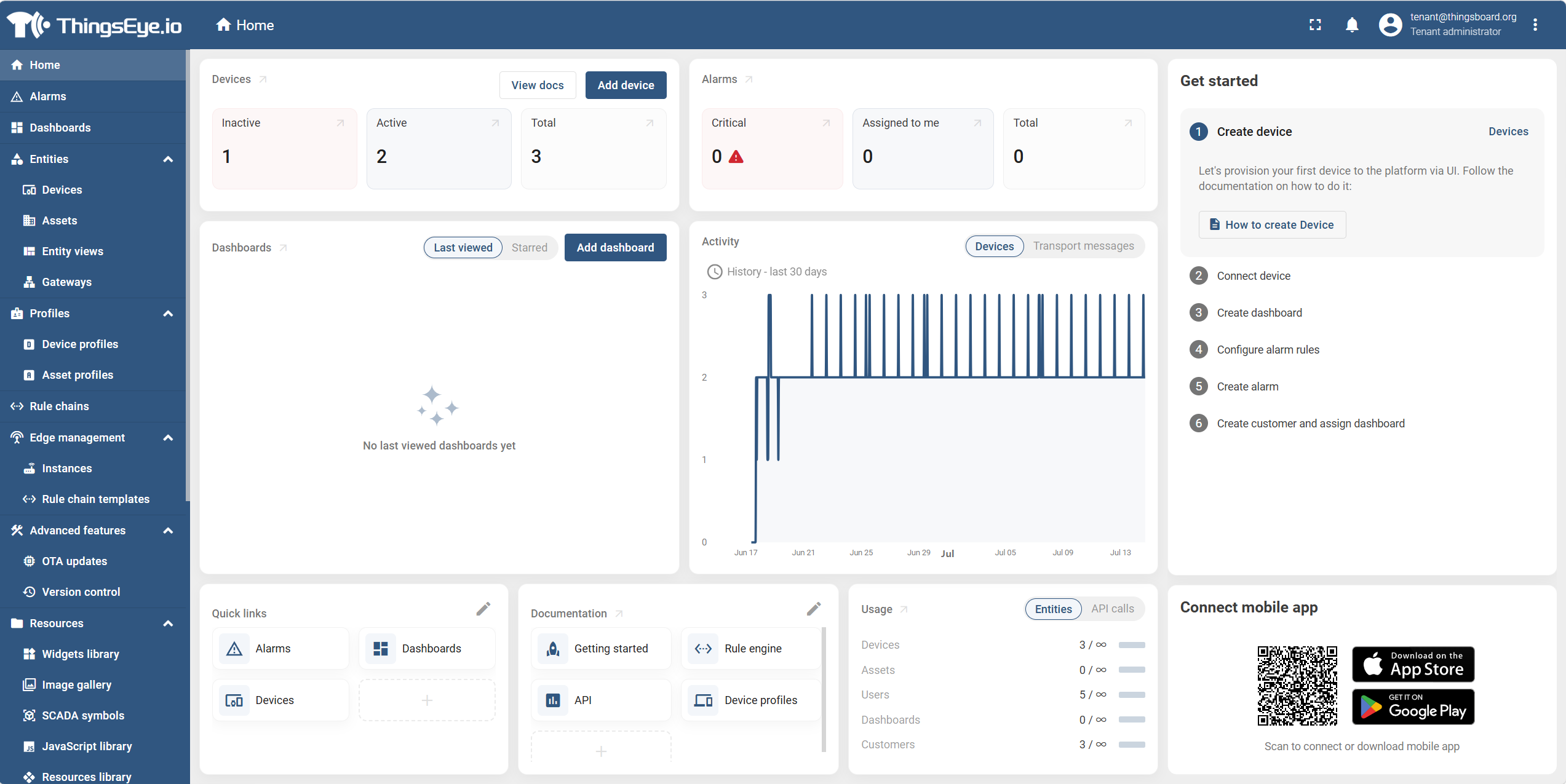
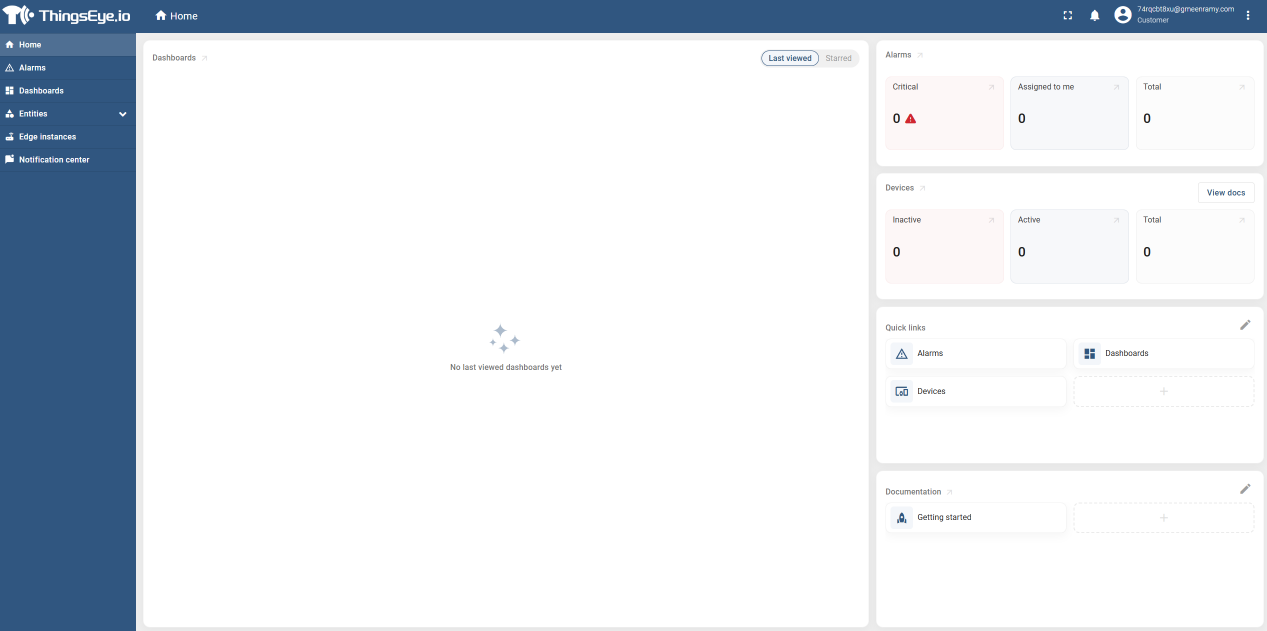
After successful login, the system automatically redirects to the corresponding console panel based on your role:
System Administrator
Tenant Administrator
End User
| Role | Destination | Console Interface |
|---|---|---|
| System Administrator | System Admin Console | |
| Tenant Administrator | Tenant Admin Console | |
| End User | Personal Dashboard View | |